
Lead Capture - Scanner or App
IMPORTANT INFORMATION – PLEASE READ
NEW FOR 2020!
Delegate badges will contain a QR code which allows you to capture leads that visit your stand, using a Scanner or an App!
Please note: As this is a first year that we have this option at this event, you will need to confirm in advance if you would like to have a scanner or the app as these need to be pre-ordered before the show. Please confirm by 8 March, order form below.
* Unfortunately we are unable to accept hirings after this deadline and the National Housing Federation are unable to hire scanners on the day as we have to place all orders in advance. Please make sure all your stand staff are aware of this please order in advance in order to avoid any disappointment on the day.
Important please read:
You have ordered the scanner and/or the App that enables you to capture Attendees personal data, which might include name, job title and company/employer and email addresses.
Please therefore note:
• There is an update to the Foremarke Exhibitions Ltd Privacy Policy in relation to the use of scanning equipment or the App for capturing personal data at events: https://www.foremarke.uk.com/privacy/
• You are not permitted to use the scanner or App for any purpose other than to scan attendees visiting your stand, except if you are presenting a session then attendees who wish to receive more information from you may approach you and ask for their badge to be scanned. This option will be announced at the end of the session.
QR code scanning with ScanX
ScanX is a QR code scanning system.
Each barcode scanner uses flash memory, which is stable and, unlike some systems, does not require constant power to hold scans in memory, so even if the battery runs out your data is still safe.
Each scanner can operate for days on a full charge and has enough onboard memory to store 100000 scans between downloads. Once a badge is scanned, the device stores it for later download. A report is produced and emailed to you at the end of the day.
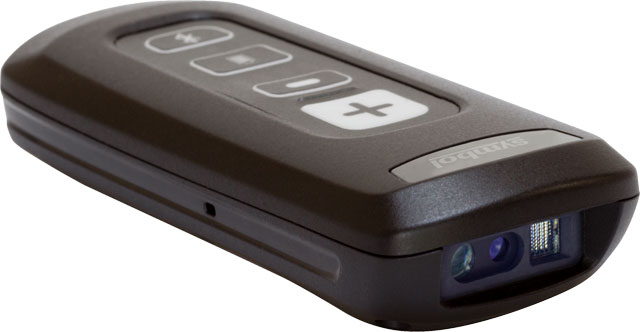 Hiring cost - £90 + VAT
Exhibitor Lead Capture App
The exhibitor lead capture app is another great way to capture who has visited your stand. Using your own phone, the app makes use of the camera to read QR codes from the badge and identify attendees.
The exhibitor can then add data to the lead data, such as notes, potential spend and urgency of follow-up, which are accessible in real time from a web portal.
Each exhibitor can download up to 10 instances of the app on 10 different devices. So if your team of say 5 or 6 reps onsite then each person can grab a copy of the app and set up their own personalised questionnaire on their phone/tablet. The main exhibitor contact will have control for setting up operators devices on their stand and questions can be set as mandatory/optional and contain a mix of multiple choice or free text field answers. There’s also a separate field for notes.
Here are some of the benefits of using the app for exhibitors:
- Two ways to capture leads: QR scanning and manual entry.
- Capture additional details on a lead: survey fields allow each exhibitor to quickly capture any information that is specific (bespoke) to their own offering.
- Security: captured leads are automatically stored offline on the device should no WiFi signal be available. As soon as WiFi/3G/4G is available it automatically uploads.
- Return On Investment: Exhibitors can substantiate the event expenditure .
Each device can have a personalised questionnaire set up. Up to 10 questions can be set as mandatory/optional and contain a mix of multiple choice or free text field answers - there’s also a separate field for notes. For security purposes, you'll need to first log on to the user's device with your login credentials. Once the event has synced down to the phone/tablet, you can log out so that the operator can log in with their credentials.
Your leads are accessible by logging onto the portal with the login credentials that were sent across.
If you'd like to come back to a lead to add more information/answer questions, then you will need to save this scan initially as a draft and then can go back later before submitting - which locks in the capture. By accessing the Quick links you can have the scanner, draft and submit icons set so that they are on the main scanning/info screen